







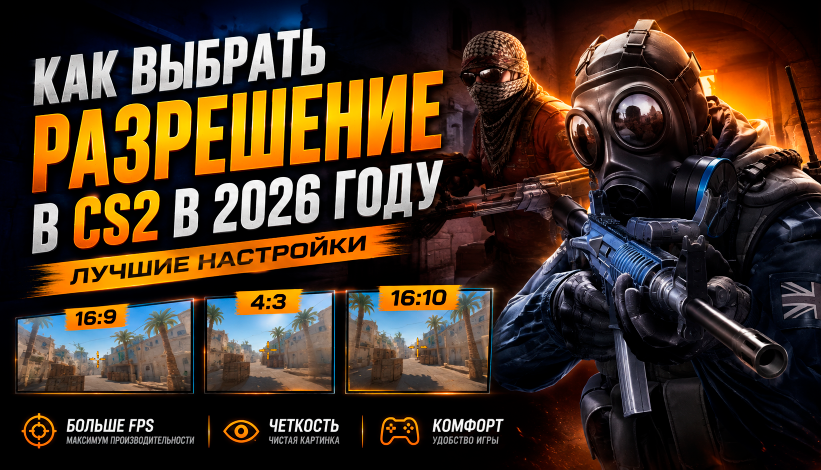
How to choose the best resolution for CS2 in 2026 – best 16:9, 4:3, and 16:10 settings for FPS, clarity, and comfortable gameplay
What resolution should you choose for CS2 to get more FPS, a comfortable field of view, and a clear image? In this guide, we cover the best Counter-Strike 2 resolutions for low-end and high-end PCs, compare 16:9, 4:3, and 16:10, explain the differences between 1920×1080, 1280×960, and 1440×1080, and show you how to properly change your resolution and configure the image in CS2.
How to Choose the Best Resolution for CS2 in 2026 – Best 16:9, 4:3, and 16:10 Settings for FPS, Clarity, and Comfortable Gameplay
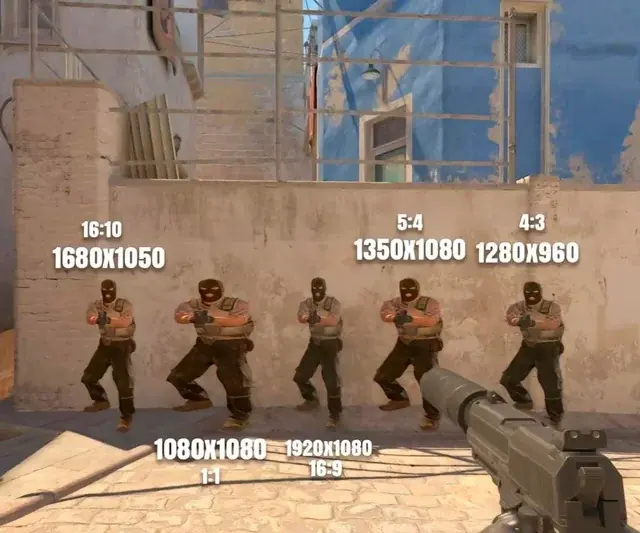
Choosing a resolution in Counter-Strike 2 is not just about image quality. The aspect ratio and number of pixels affect the visual size of player models, field of view, image smoothness, and GPU load. That is why there is no universal resolution that is perfect for every player.
Some players prefer the standard 1920×1080 at 16:9 because it provides a wider view of the map and a sharp, detailed image. Others choose 4:3, as a stretched image makes enemy models appear visually wider. On low-end PCs, lowering the resolution can also be an easy way to increase FPS and reduce the load on the system.
In this article, we will explain which resolution is best for CS2, how 16:9, 4:3, and 16:10 differ, which resolution to use on low-end and high-end PCs, and how to properly configure your in-game image.
Why Resolution Matters in CS2
In competitive shooters, even small changes to the image can affect how comfortable the game feels. In CS2, resolution determines not only image detail but also how large different game elements appear on your screen.
When choosing your settings, you should consider several factors:
PC performance;
monitor refresh rate;
desired FPS;
visual size of player models;
field of view;
image clarity;
your personal gaming preferences.
Therefore, switching to a lower resolution does not always mean that the game will become better. If your PC can easily maintain high FPS at your monitor's native resolution, 16:9 may be the more comfortable option.
16:9 – The Standard CS2 Format
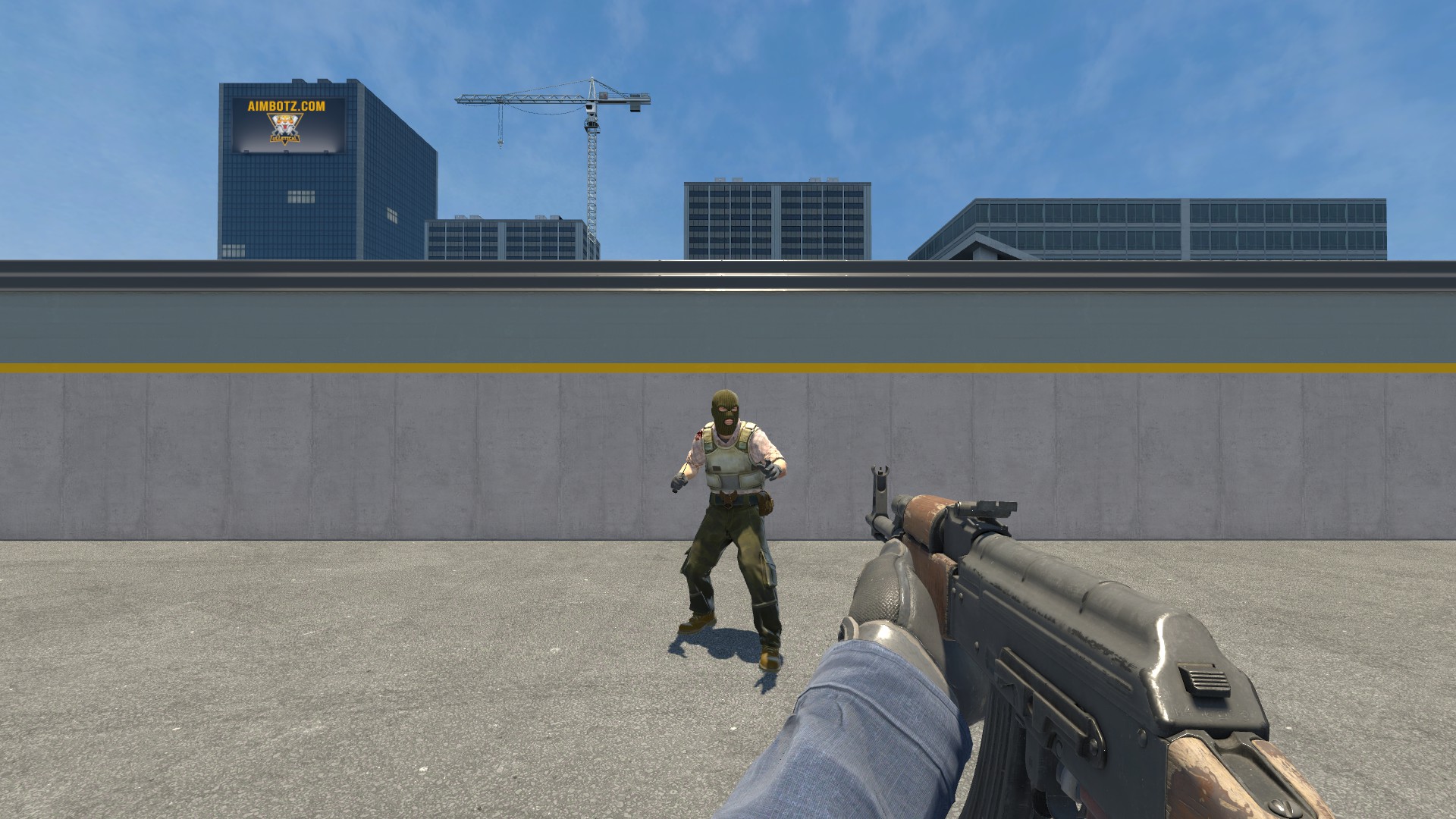
16:9 is the most common modern aspect ratio. The most popular resolution is 1920×1080, although you can also use other resolutions with the same aspect ratio.
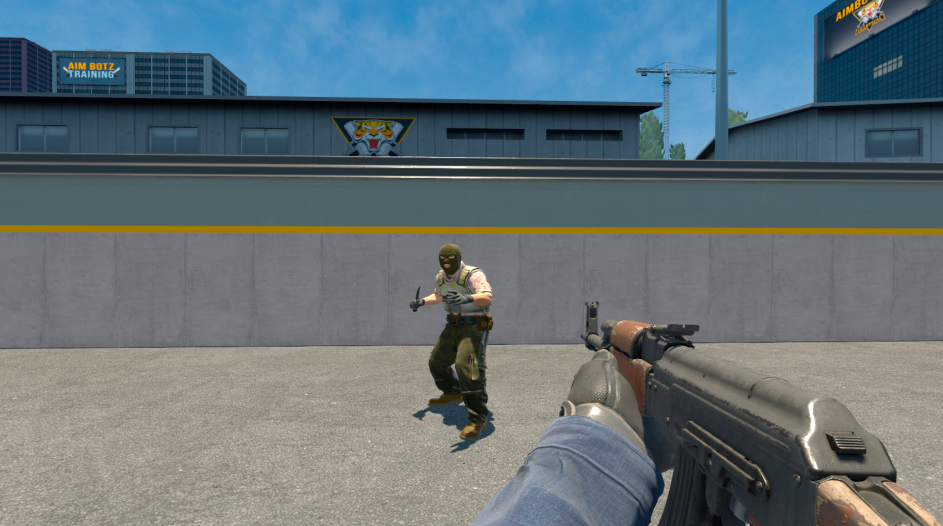
The main advantage of 16:9 is its wide horizontal field of view. You can see more space to the left and right of the center of the screen, which means an enemy may enter your field of view earlier.
Advantages of 16:9:
wider field of view;
sharp and detailed image;
natural player model proportions;
no image stretching;
comfortable viewing of objects at long distances;
a good option for modern high-end PCs.
At the same time, enemy models do not appear visually wider in the same way they do with stretched 4:3.
If your PC can consistently maintain high FPS and you are comfortable with the standard image, 1920×1080 at 16:9 can be considered one of the most versatile options.
4:3 — A Popular Resolution Among CS2 Players
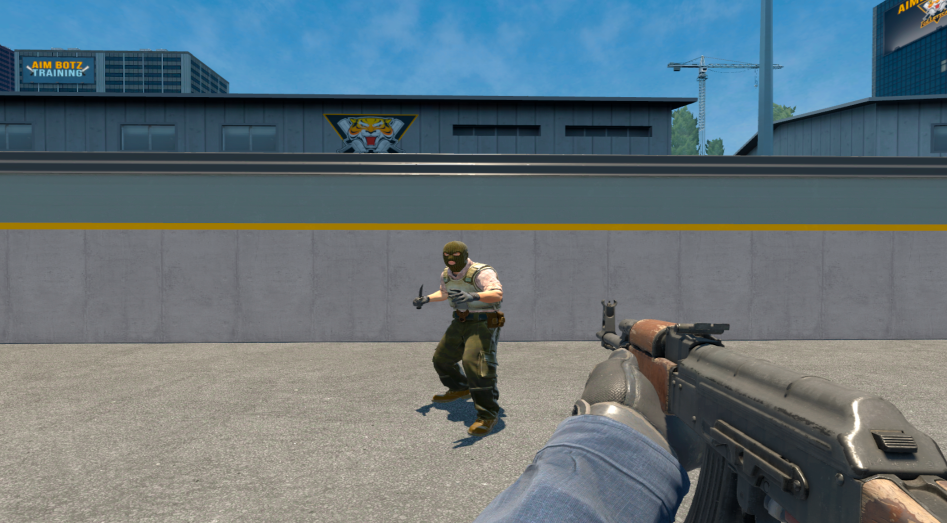
The 4:3 aspect ratio has a huge number of fans in Counter-Strike. One of the most popular resolutions is 1280×960.
The 4:3 stretched setup is especially common, where the image is stretched across the entire screen. Because of this, player models appear visually wider, which some players find makes aiming easier.
Advantages of 4:3:
visually wider player models when stretched;
potentially higher FPS when using a lower resolution;
a classic format familiar to many Counter-Strike players;
a feeling of faster horizontal movement;
lower GPU load when using a low resolution.
However, there is also a significant downside – the horizontal field of view becomes narrower. Some of the space visible at the edges of the screen in 16:9 is lost when using 4:3.
Therefore, 4:3 is not guaranteed to be the best option for everyone. It is better suited to players who like this visual style and are already used to it.
16:10 – A Compromise Between 16:9 and 4:3
If the standard 16:9 format feels too wide while 4:3 feels too stretched, you can consider 16:10.
This format sits roughly between the two popular options. It allows you to maintain a reasonably wide field of view while making the overall game image slightly more compact.
As an alternative setup, some players use the 1440×1080 resolution. With the appropriate settings, it provides a specific aspect ratio and changes how player models and the space around them are perceived on screen.
Advantages of this approach:
larger visual objects compared to standard 16:9;
less of a stretched-image feeling;
reasonably good image detail;
a unique visual style;
a compromise between field of view and player model size.
However, a non-standard resolution does not necessarily provide an advantage in every situation. The most important thing is to choose a setup that feels comfortable and that you can get used to.
What Resolution Should You Use on a Low-End PC?
If your PC struggles to maintain stable FPS in CS2, lowering the resolution can help reduce the load on your GPU.
First, try:
1280×960 (4:3) – a good balance between performance and image quality.
If your FPS is still too low, you can try:
1024×768 (4:3) – a lower resolution that can further reduce GPU load.
However, you should not focus only on the maximum FPS number. For competitive gaming, stable frame rates without major drops are much more important.
Which Is Better: 16:9 or 4:3?
There is no single correct answer.
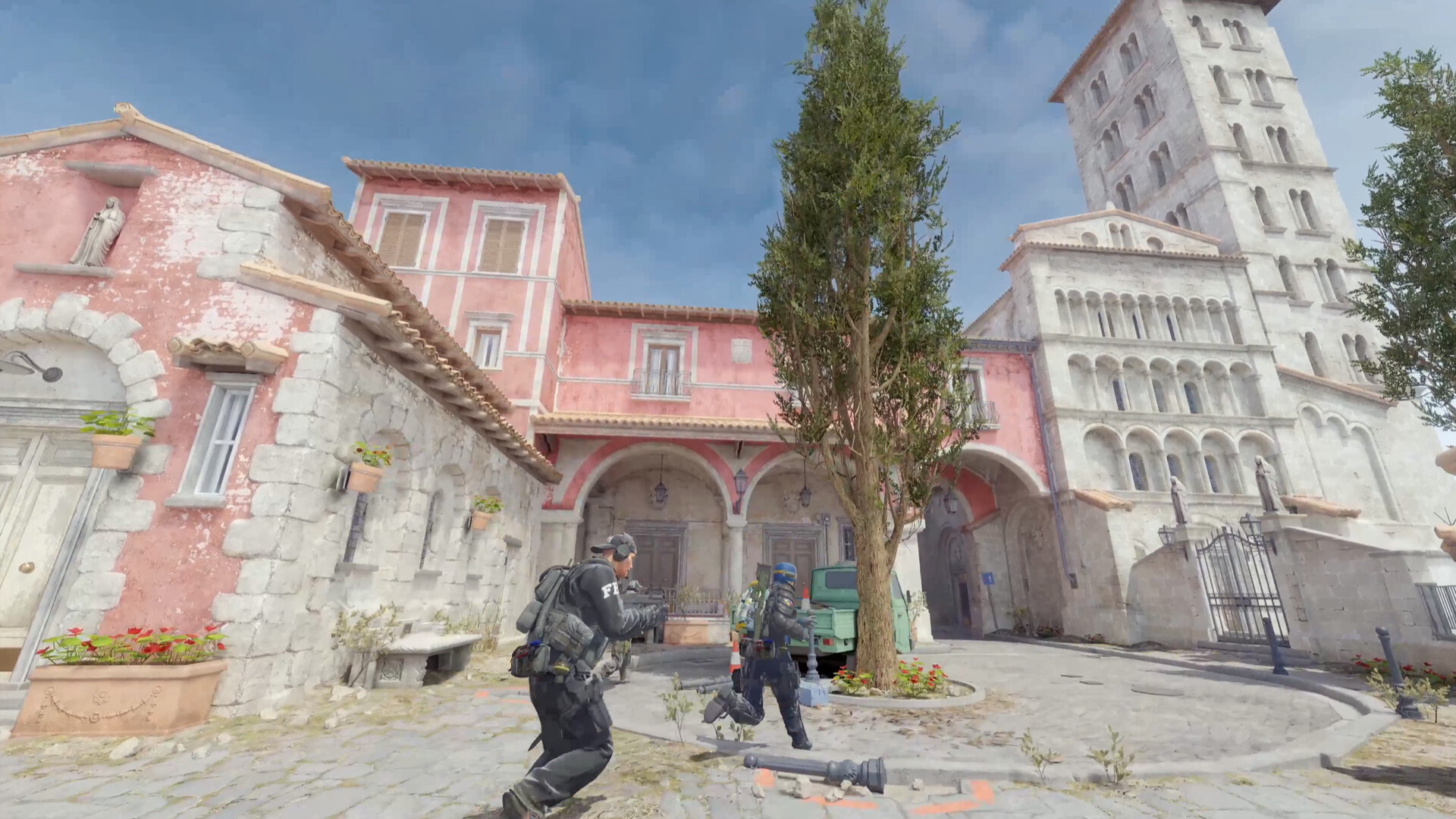
16:9 is better suited to players who value a wide field of view, high image detail, and natural image proportions.
4:3 is worth trying if you are more comfortable with wider-looking player models and a narrower field of view.
Each option has its own advantages:
Parameter | 16:9 | 4:3 Stretched |
|---|---|---|
Field of view | Wider | Narrower |
Player models | Standard proportions | Visually wider |
Image quality | High | Depends on resolution |
FPS | Usually lower | Can be higher |
Detail level | Higher | Lower at low resolutions |
Getting used to it | Easier for 16:9 users | Requires adjustment |
How to Change Resolution in CS2
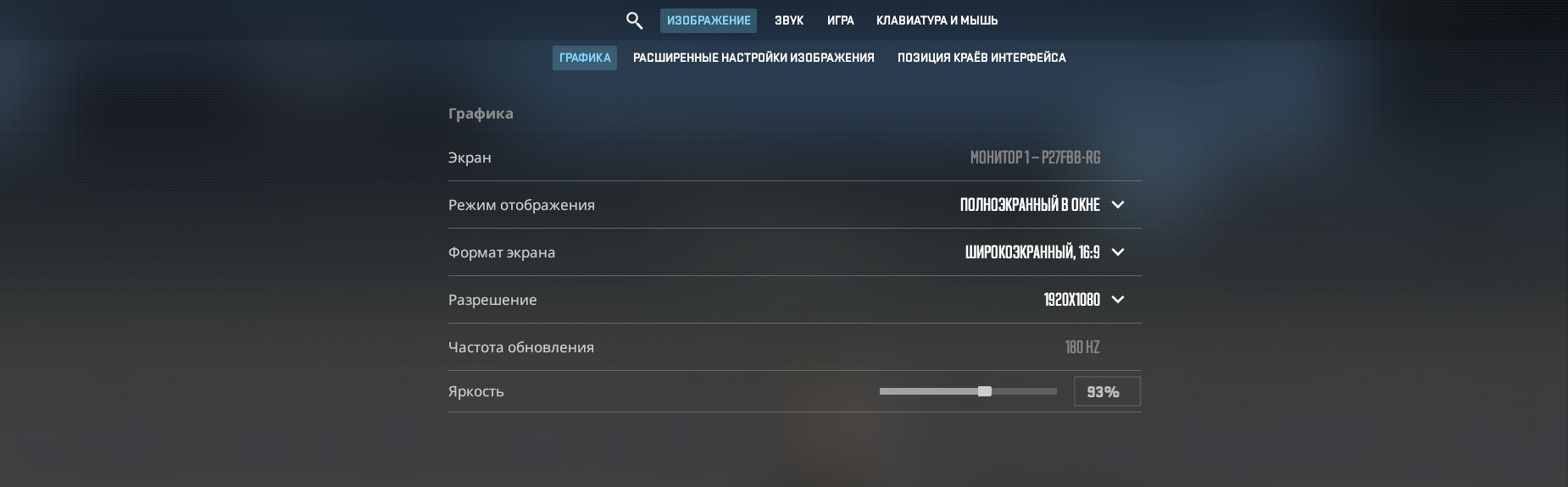
You can change your resolution directly through the game's settings.
Open CS2 and go to the video settings. Then find the display options and select the desired display mode and resolution.
For stretched 4:3, it is important to pay attention not only to the resolution itself but also to how the image is scaled.
If you want to use 1280×960, select the 4:3 aspect ratio and the corresponding resolution, then check how the image looks on your monitor.
How to Set 1440×1080 in CS2
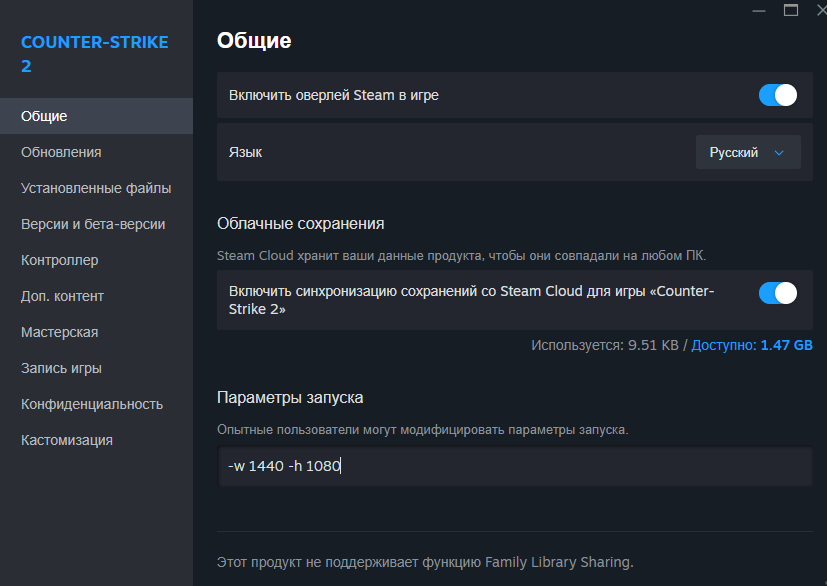
If the resolution you want is not available in the standard list, you can use Steam launch options.
Open your Steam library, find Counter-Strike 2, right-click the game, and select “Properties.”
In the launch options field, enter:
-w 1440 -h 1080
After launching the game, CS2 should use the specified image width and height.
Before using a non-standard resolution, make sure that your monitor and graphics driver properly support the selected display mode.
Does Resolution Affect FPS in CS2?
Yes, resolution can affect performance.
The fewer pixels that need to be rendered, the less work your GPU has to do. Therefore, switching from 1920×1080 to 1280×960 or 1024×768 can increase FPS.
However, the performance gain depends on your specific PC. If your system is limited by the CPU rather than the GPU, lowering the resolution may have little to no effect on performance.
That is why it is best to test several options yourself and compare not only the average FPS but also frame-rate stability during actual gameplay.
What Is the Best Resolution for CS2?
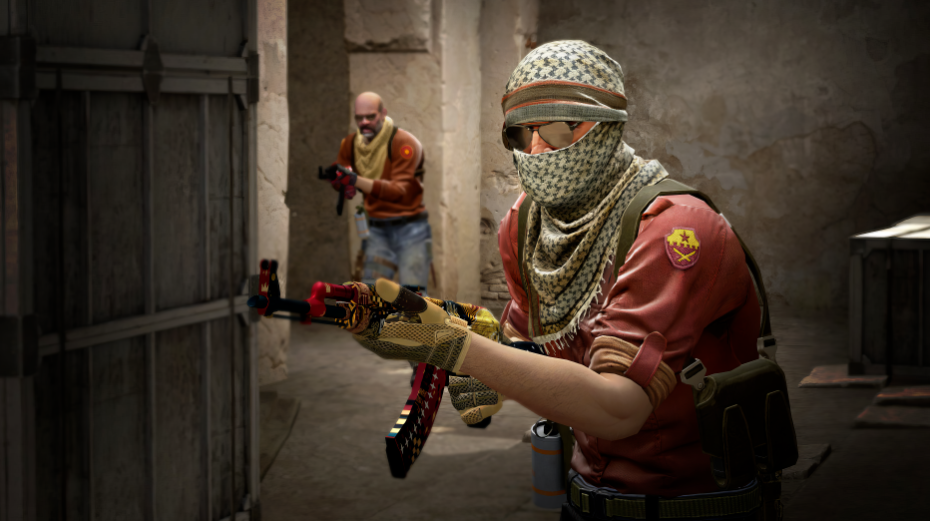
If you want a universal option, start with 1920×1080 at 16:9. It is a good choice for a powerful PC and players who value image clarity and a wide field of view.
If you want to try the classic Counter-Strike style, test 1280×960 at 4:3.
For a very low-end PC, you can consider 1024×768 at 4:3, especially if FPS drops are your main problem.
And if you want something between the standard image and stretched 4:3, you can try 16:10 or other non-standard resolutions.
Conclusion
The best resolution for CS2 depends not only on your PC specifications but also on your personal preferences. Some players will feel more comfortable using 1920×1080 at 16:9, while others will prefer 1280×960 at 4:3 stretched.
If you have a low-end PC, lowering the resolution can help increase and stabilize FPS. On a powerful system, you can instead maintain high image quality and a wide field of view by using your monitor's native resolution.
The most important thing is not to blindly copy the settings of professional players. Your resolution, aspect ratio, and image settings should be comfortable specifically for you. Try several options, play a few matches, and choose the one that makes it easier to control your crosshair, spot enemies, and play CS2 consistently.
Leave a comment
Top Sites

CSFAIL
Opening a free case

Upgrader
CS2 Skin Upgrade

Donatov
Promo code for top-up

GGDROP
Promocode for bonus wheel

GalaxyLink
Discount promo code

Lis-skins
To sell skins profitably

AvanMarket
Profitable to sell skins

MyCSGO
Deposit Promo Code

Moonmarket
Selling skins profitably
User comments: