








A guide for those tired of unstable CS2: disable blood, dynamic lighting, particles, and unnecessary drivers — get smooth gameplay even on weak hardware.
Launch settings that eliminate FPS drops, speed up the Source 2 engine, and help avoid lag in smoke, gunfire, and fast-paced firefights.
Best Launch Commands in CS2 to Increase FPS
Low FPS in CS2 is not just about frame drops — it also causes input delay, unstable visuals, reduced reaction speed in duels, and ultimately leads to lost matches and frustration. Most players try to solve this by lowering graphics settings or upgrading hardware, but there is a simpler, faster and completely free solution — properly configuring the game’s launch options.
Launch parameters allow CS2 to start with specific system instructions: CPU priority, screen mode, thread usage and additional performance optimizations. This improves stability, reduces micro-stutters, and makes the game run smoother even on weak PCs.
Where to Enter Launch Options in CS2
To add commands, follow these steps:
Open Steam.
Go to the Library section.
Find Counter-Strike 2.
Right-click → Properties.
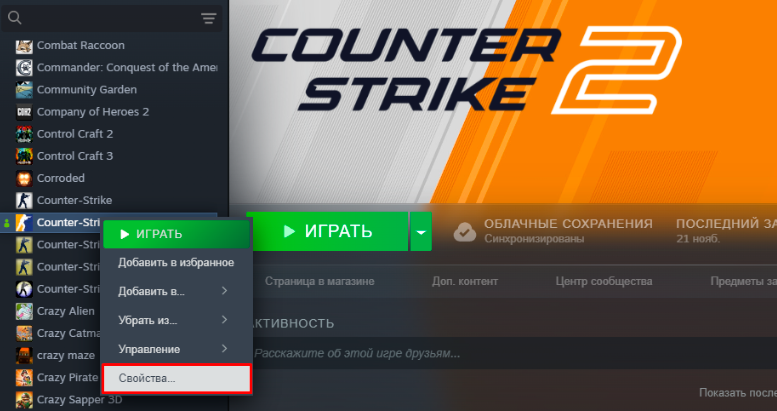
In the General tab, find the Launch Options field under the text “Advanced users may modify launch options”.
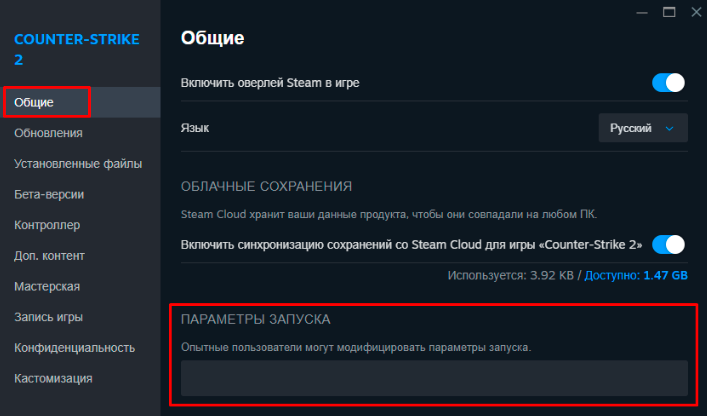
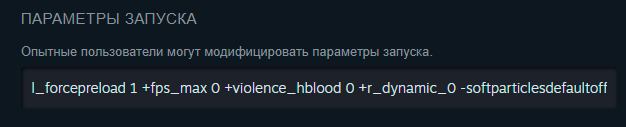
Paste your commands and close the window.
The settings will now be applied automatically every time you launch CS2.
Detailed Description of Commands to Increase FPS in CS2
Below are the commands that truly affect performance and stability.
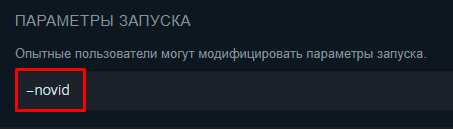
1. –novid — Skip the Valve Intro
This command disables the intro video when launching CS2. It saves a few seconds and reduces CPU/GPU load during startup.
It doesn’t directly increase FPS, but improves launch stability, especially on low-end PCs.
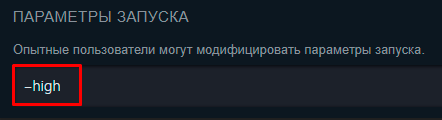
2. –high — Launch CS2 with High Priority
Runs the game with a higher priority in Windows, forcing the system to allocate more CPU resources to CS2 rather than background apps.
Benefits:
fewer stutters
more stable FPS
faster input processing
On weaker PCs, avoid running heavy background programs like browsers, screen recorders and music players.
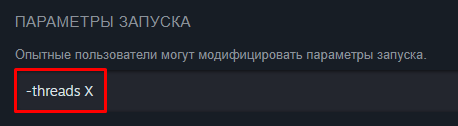
3. -threads X — Use All CPU Cores
Allows you to manually specify how many CPU threads the game should use.
How to set it:
Check how many physical cores your CPU has.
Add +1 to that number.
Replace X with the result.
Example: 6-core CPU → -threads 7
Since CS2 is heavily CPU-dependent, this command can reduce FPS drops in smokes and firefights and improve overall Source 2 performance.
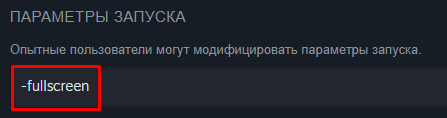
4. -fullscreen — Force Fullscreen Mode
Forces the game to run in exclusive fullscreen mode.
Borderless and windowed modes use more system resources to render the desktop and background processes.
Advantages:
smoother gameplay
fewer FPS dips
more stable frame pacing
The only downside: slower Alt+Tab switching.
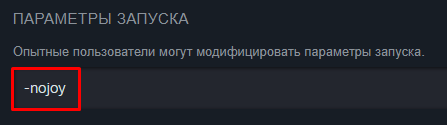
5. -nojoy — Disable Controller Support
Disables joystick and controller support.
If you don’t use a gamepad, this command is recommended because it:
removes unnecessary drivers
reduces background load
helps eliminate random stutters during matches
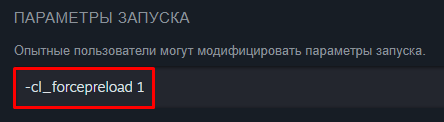
6. -cl_forcepreload 1 — Preload Textures and Sounds
Forces the game to preload models, textures and sound files before a match starts.
Instead of loading assets mid-game, the data is stored in RAM.
Benefits:
significantly fewer micro-stutters
smoother gameplay
stable performance on all maps
Needs 16GB RAM or more, otherwise it may cause lag spikes.
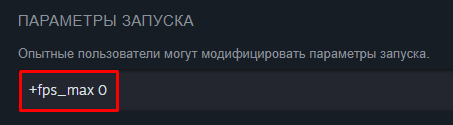
7. +fps_max 0 (or +fps_max 400) — Remove FPS Limit
CS2 can limit FPS by default.
This command removes the cap and lets your hardware push maximum frames.
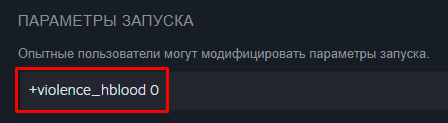
8. +violence_hblood 0 — Disable Blood Effects
Fully disables blood in CS2.
Gives:
a slight FPS boost
less visual clutter
cleaner visibility in duels
9. -softparticlesdefaultoff — Disable Soft Particles
Removes small particle effects that put extra load on the CPU and GPU.
This gives a small but noticeable FPS improvement.

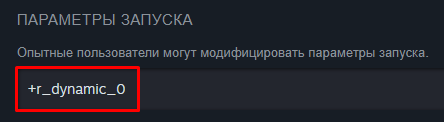
10. +r_dynamic_0 — Disable Dynamic Lighting
Disables dynamic lighting across all maps.
Benefits:
better performance
lower GPU load
more stable FPS in heavy situations
Optimal Launch Options String
Suitable for most PCs:
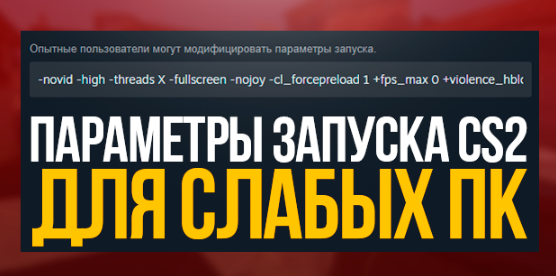
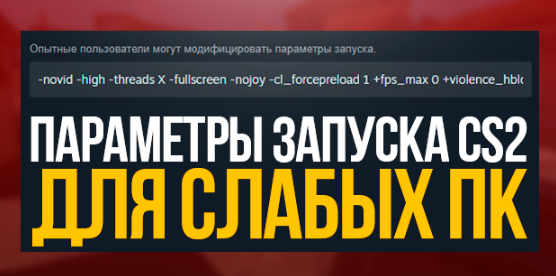
-novid -high -threads X -fullscreen -nojoy -cl_forcepreload 1 +fps_max 0 +violence_hblood 0 +r_dynamic_0 -softparticlesdefaultoff Just replace X with the correct number of threads for your processor.
Note: launch options are recommended for advanced users as certain combinations may cause crashes or conflicts.

Conclusion
Properly configured CS2 launch settings can noticeably improve smoothness and stability. They increase average FPS, reduce frame drops, eliminate micro-stutters and improve input response. This is a safe and free optimization method that does not require third-party software or hardware upgrades, making it effective for both low-end and high-end PCs.
Leave a comment
Top Sites

CSFAIL
Opening a free case

Upgrader
CS2 Skin Upgrade

Donatov
Promo code for top-up

Lis-skins
To sell skins profitably

GGDROP
Promocode for bonus wheel

AvanMarket
Profitable to sell skins

MyCSGO
Deposit Promo Code

Moonmarket
Selling skins profitably

GalaxyLink
Discount promo code
User comments:
круто
09.12.2025