








How to set up your crosshair in CS2 in 2026 – all styles, colors, settings, and how to use another player’s crosshair
How do you properly configure your crosshair in Counter-Strike 2 after the latest updates? In this guide, we take a detailed look at all current CS2 crosshair styles available in 2026, including Dynamic Quad, Static Cross, Static Circle, and Static Quadrant. We also explain which colors work best on different maps, how to adjust size, thickness, Gap, and outline settings, and how to quickly import another player’s crosshair using Share/Import.
How to Set Up Your Crosshair in CS2 in 2026 – All Styles, Colors, Settings, and How to Use Another Player’s Crosshair
The crosshair in Counter-Strike 2 is one of the most important individual interface settings. It is constantly positioned in the center of the screen and helps players aim and stay focused during a match, which means even small changes to its size, thickness, color, or gap can have a major impact on comfort and visibility.
Following recent updates, Valve has significantly reworked the crosshair system in CS2. Crosshair settings were moved to a separate section, new styles were added, the way crosshair dimensions work was changed, and Dynamic Quad became the new default option. Players can also customize the outline color separately and fine-tune the crosshair more precisely for their monitor, resolution, and preferred maps.
In this article, we will explain how to set up your crosshair in CS2 in 2026, which crosshair styles are available after the updates, which colors work best on different maps, and how to import another player’s crosshair.
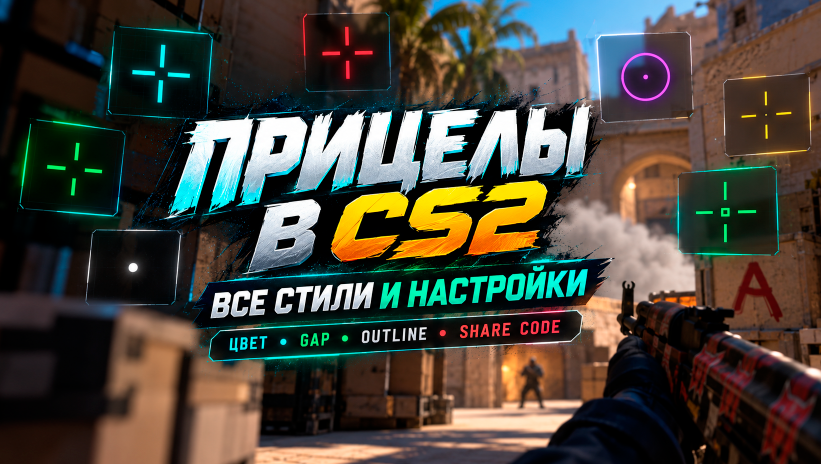
Why the Crosshair Is So Important in CS2
For a beginner, the crosshair may seem like a small interface detail, but during a match players are constantly focused on the center of the screen.
A crosshair that is too large can cover small details or enemy models at long distances. A crosshair that is too small, on the other hand, may become difficult to see against certain map textures. Thick lines are easy to notice, but they take up more space, while very thin lines can almost disappear on bright backgrounds.
That is why there is no single universal crosshair that works perfectly for every player. When choosing your settings, you should consider your screen resolution, monitor size, aspect ratio, map color palette, and personal preferences.
Some players prefer a small static crosshair that always looks the same. Others like dynamic styles that visually show changes in weapon accuracy. This is exactly why Valve provides so many options for individual crosshair customization.
What Changed in CS2 Crosshairs After the Update
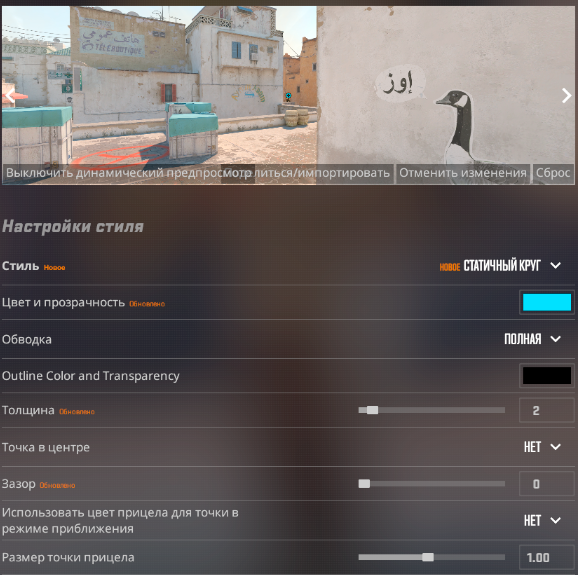
One of the biggest changes is that crosshair settings now have their own Crosshair tab in the upper settings menu. Previously, these options were located inside the general game settings, while now they are collected in one dedicated section.
The sizing system has changed as well. Crosshair length and thickness are now set in pixels, while the game automatically recalculates them when the resolution changes so that the crosshair keeps similar visual proportions. For example, if the resolution is doubled, a two-pixel setting will scale accordingly.
Later updates introduced Static Square, partial outline customization, and additional changes to the way dynamic accuracy feedback is displayed. On September 30, Valve also added Static Quadrant, custom outline colors, negative Gap values for the classic dynamic crosshair, and an updated Share Code format.
All Crosshair Styles in CS2 in 2026
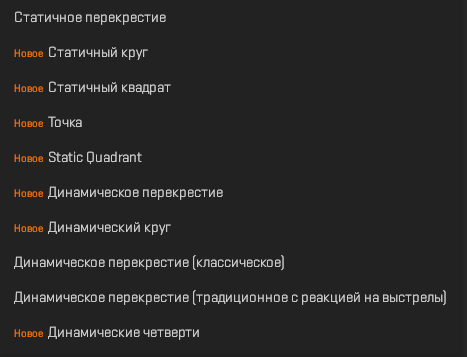
After several September updates, the selection of crosshair styles became much more diverse. In addition to the traditional cross, players can now choose circles, squares, dots, and several new dynamic options. The current selection includes:
Static Cross — a traditional static crosshair. The lines do not move during gameplay, making it one of the simplest and most predictable options.
Static Circle — a static circular crosshair. It can be useful for players who prefer aiming with a compact circle instead of four separate lines.
Static Square — a static square-shaped crosshair. Valve added this option after the first major crosshair system update.
Static Quadrant — a newer static style added on September 30. It uses separate crosshair segments but does not feature dynamic expansion.
Dot Only — a highly minimalist option consisting primarily of a central dot.
Dynamic Cross — a dynamic cross whose elements react to changes in in-game accuracy.
Dynamic Circle — a circular dynamic crosshair that visually changes depending on weapon accuracy and player movement.
Dynamic Cross (Classic) — the classic version of the dynamic crosshair familiar to players from previous crosshair systems.
Dynamic Cross (Legacy / Shot Feedback) — a style that visually reacts to the player’s actions while keeping the basic crosshair shape relatively stable.
Dynamic Quad — the new default CS2 crosshair. The central area remains easy to use for aiming, while additional dynamic elements visually display changes in accuracy.
Which Crosshair Color Should You Choose in CS2?
The crosshair color is just as important as its size and thickness. Even perfectly configured dimensions will not help much if the crosshair constantly blends into the map textures.
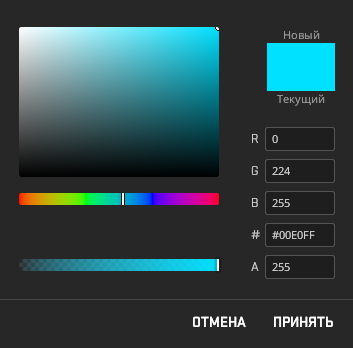
The best approach is to choose a color that creates strong contrast with the environment. This is why many players use bright shades such as cyan, lime green, green, pink, or vivid red.
For example, Dust II, Mirage, and Anubis contain many sandy, beige, and yellow-brown surfaces. Cyan, turquoise, and bright green crosshairs are usually easy to see against these backgrounds.
However, there is no need to use a separate crosshair for every map. In most cases, it is more convenient to find one color that remains clearly visible in most situations.
Crosshair Outline, Size, Thickness, and Gap
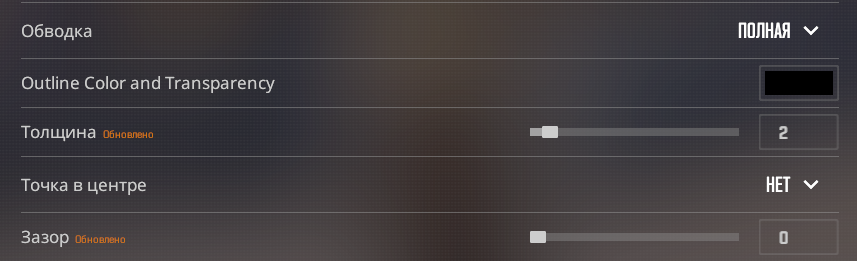
Some of the most important CS2 crosshair settings are the outline, line length, thickness, and distance between the lines. The outline helps prevent the crosshair from blending into the environment. For example, a bright green crosshair may be highly visible on most maps but can become harder to see against vegetation. After the update, Valve also added the ability to choose a custom outline color.
Length and thickness determine how large and visible the crosshair appears. Larger and thicker lines are easier to notice, but they take up more space in the center of the screen, while a more compact crosshair blocks less of your view. The Gap setting controls the distance between the crosshair lines: a smaller gap creates a tighter crosshair, while a larger one leaves more open space around the center.
After the update, the main crosshair dimensions are calculated in pixels and automatically scale when the resolution changes.
How to Set Up Your Crosshair in CS2 in 2026
After the update, configuring a crosshair has become much easier. Open Settings, go to the dedicated Crosshair/Scopes tab, choose the style you want, and adjust the available parameters.
You can immediately preview your changes, so there is no need to constantly enter a match just to test every minor adjustment.
It is usually better to start by choosing between a static or dynamic style, then configure the size and Gap, and finally select the color and outline.
This makes it much easier to create a clean and comfortable crosshair instead of changing dozens of settings at the same time.

How to Use Another Player’s Crosshair in CS2
The easiest method is to use a Share Code.
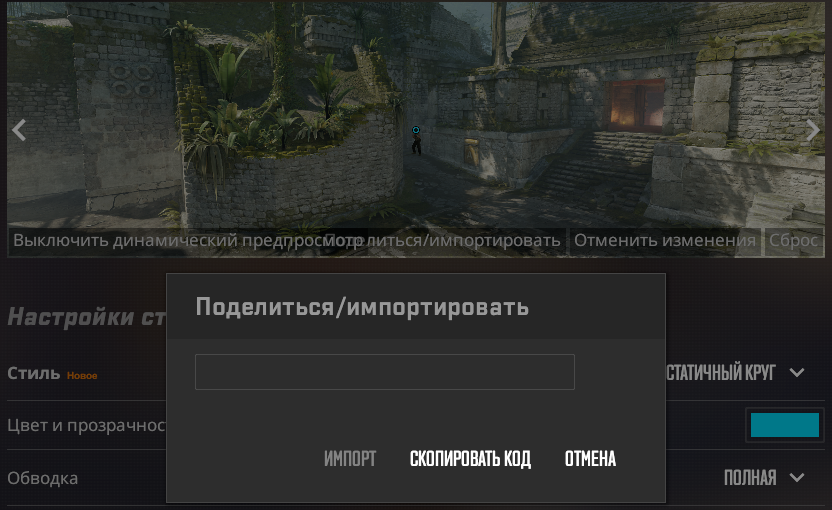
The Crosshair section includes a Share/Import option. Open the import window, paste the alphanumeric code, and confirm the import. The game will automatically apply all crosshair settings stored in the code.
After the September 30 update, Valve changed the Share Code format so that it could include additional settings, including dot parameters and color settings for scoped weapons.
Before importing someone else’s crosshair, it can be useful to save your own Share Code first. That way, if you do not like the new setup, you can quickly restore your previous settings.
You may also be able to copy another player’s crosshair while spectating them. Open the scoreboard, select the player you are watching, and use the Copy Crosshair option. However, the most universal and convenient method remains importing a crosshair through a Share Code.
Conclusion
Following the latest updates, the CS2 crosshair system has become significantly more flexible. Crosshair settings now have their own Crosshair/Scopes tab, dimensions use a new pixel-based system with automatic scaling, Dynamic Quad has become the default style, additional styles have been introduced, and players now have more options for customizing colors and outlines.
You can now fine-tune your crosshair based on your resolution, map, color palette, and personal preferences. Players who prefer a classic setup can use compact static styles, while those who want additional visual feedback can choose one of the dynamic options.
You also do not have to create your crosshair completely from scratch. Thanks to Share/Import, you can import a friend’s or another player’s crosshair within seconds, test it, and then adjust individual settings to suit your own preferences.
The main thing is not to copy someone else’s settings blindly. Even a popular crosshair may feel uncomfortable on your particular resolution or monitor. The best CS2 crosshair is the one that remains clearly visible on different maps, does not block the center of the screen, and feels comfortable for you personally.
Leave a comment
Top Sites

CSFAIL
Opening a free case

Upgrader
CS2 Skin Upgrade

Donatov
Promo code for top-up

Lis-skins
To sell skins profitably

GGDROP
Promocode for bonus wheel

AvanMarket
Profitable to sell skins

MyCSGO
Deposit Promo Code

Moonmarket
Selling skins profitably

GalaxyLink
Discount promo code
User comments: